
To check the status of a gift you've sent:
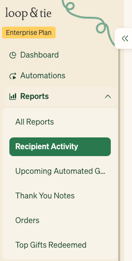
- Go to the Reports tab in the Loop & Tie dashboard and choose Recipient Activity.
-
Inside the Recipient Activity report you can filter by Date Range, Gift Status, Created By, Sent From, and Campaign.
- To export a CSV file of the gift activity data, click the Export Data button next to the date range selector.
What does each gift status mean?
- All Stages - See every gift, regardless of gift status.
- Bounced - The email address specified does not exist or rejected the gift email. You can click into the specific gift send and change the email address to resend the gift.
- Canceled - The gift was either manually canceled within the Loop & Tie dashboard or the time period for redemption has passed and the gift was unclaimed. The gift credits for the canceled or unclaimed gift will be returned to your account and are valid for 365 days from the original purchase date.
- Declined - The recipient politely declined your offer to send a gift. The gift credits for the declined gift will be returned to your account and are valid for 365 days from the original purchase date.
- Delivered - The recipient's gift has been delivered to their specified mailing address.
- Opened - The recipient opened your gift email but has not redeemed the gift yet.
- Redeemed - The recipient redeemed your gift for the item of their choice but it has not yet been shipped.
- Scheduled - The gift is scheduled to send at a future date and time.
- Sent - The gift email has been sent but has not been opened yet by the recipient.
- Shipped - The recipient's gift selection has shipped to their specified mailing address.