You can view the status of any custom packaging bundles you've submitted on the "Custom Packaging" tab in your Loop & Tie account:
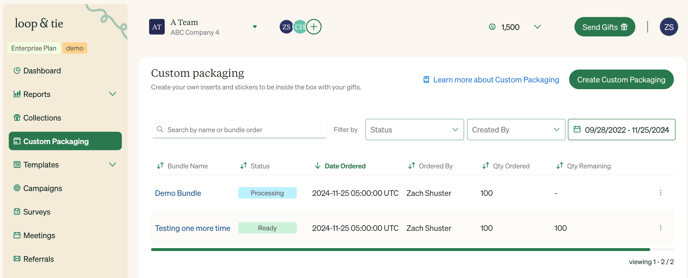 Once a bundle's status changes to "Ready", it can be included with an eligible collection in your next gift send. Bundles showing any other status are not yet available to use.
How to Send a Gift with Custom Packaging
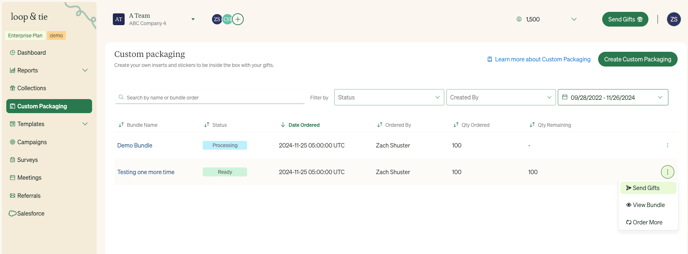
To use custom packaging:- Click "Send Gift" from the three-dot menu next to a bundle with status: "Ready":
- You can also initiate a send as usual using the "Send Gifts" button in the header of your main dashboard page
- If you have at least one custom packaging bundle with the status "Ready", you'll see a prompt asking whether you want to send with custom packaging before proceeding.
- Selecting "Yes, send custom packaging" takes you to the "Custom Packaging Collections" tab (see Step 2 below). Selecting "No, thanks" takes you to the "Marketplace" tab as usual.
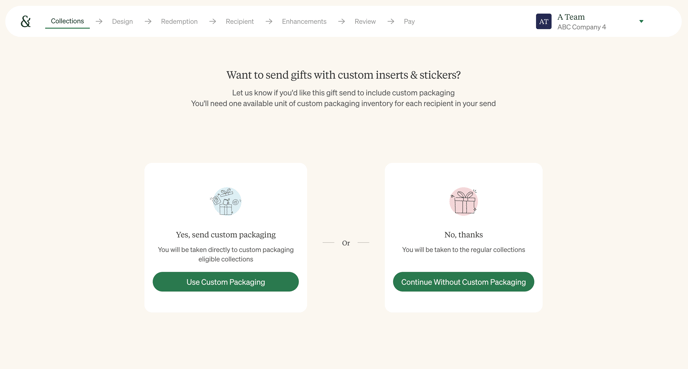
- Selecting "Yes, send custom packaging" takes you to the "Custom Packaging Collections" tab (see Step 2 below). Selecting "No, thanks" takes you to the "Marketplace" tab as usual.
- Select a collection from the "Custom Packaging Collections" tab in the Send a Gift flow:
-
- Note: The "Custom Packaging Collections" tab will not appear until you have at least one custom packaging bundle with the status "Ready"
- Because not every item in a Loop & Tie marketplace collection is compatible with custom packaging fulfillment, "Custom Packaging" collections are slightly pared-down versions of our standard marketplace collections at the same price points
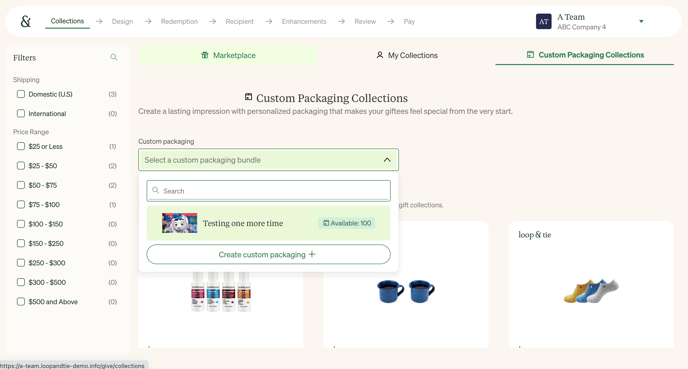
- You must select a custom packaging bundle from the available dropdown to send a collection from the "Custom Packaging Collections" tab:
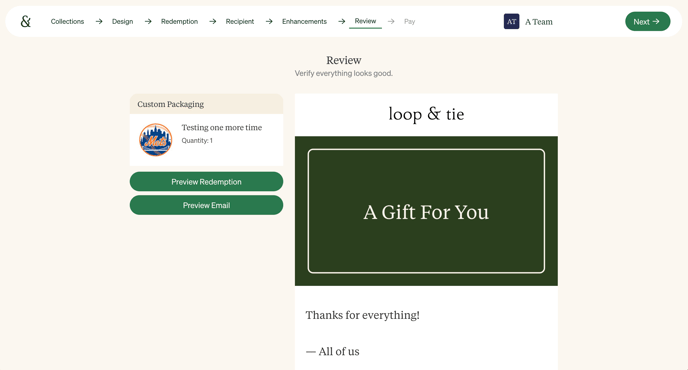
- Confirm that the right custom packaging bundle is attached to the gift send in the "Review" stage of the Send a Gift flow: